In order to configure the Microsoft 365 & Azure Scanners in CS360 for Cloud Security Scanning and User Threat Monitoring a Service User needs to be created.
Once you have completed this setup you will have the required authentication details to configure each scanner:
- Tenant ID
- Client ID
- Client Secret Value
Part 1 – Service Principal Setup
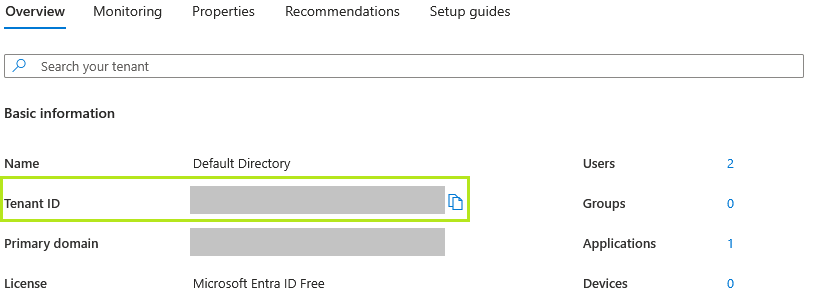
1) Login to Microsoft EntraID and take note of the Tenant ID from Azure.
2) Navigate to Manage > App registrations:
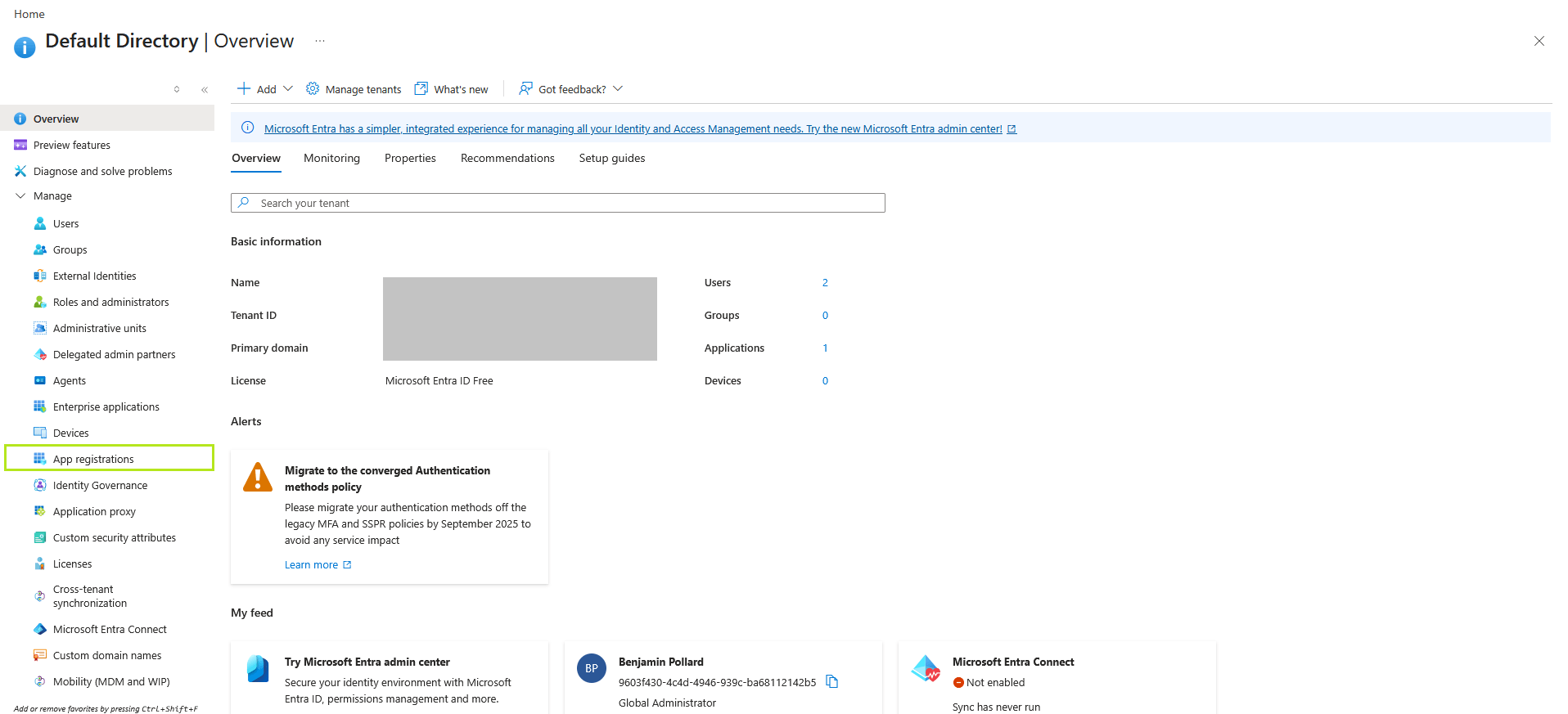
3) Click + New registration
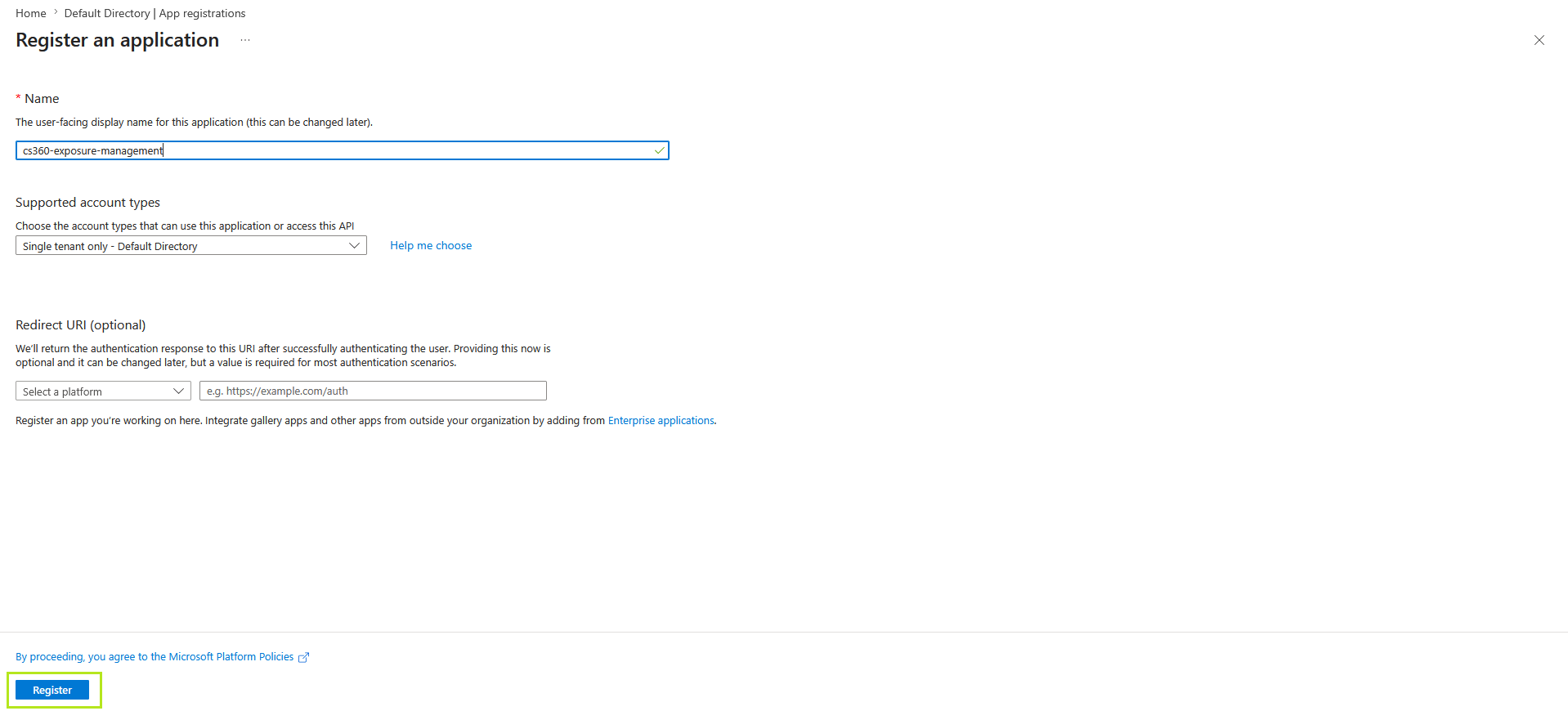
4) Complete the form by adding the Name (cs360-exposure-management), leave the defaults, and click Register
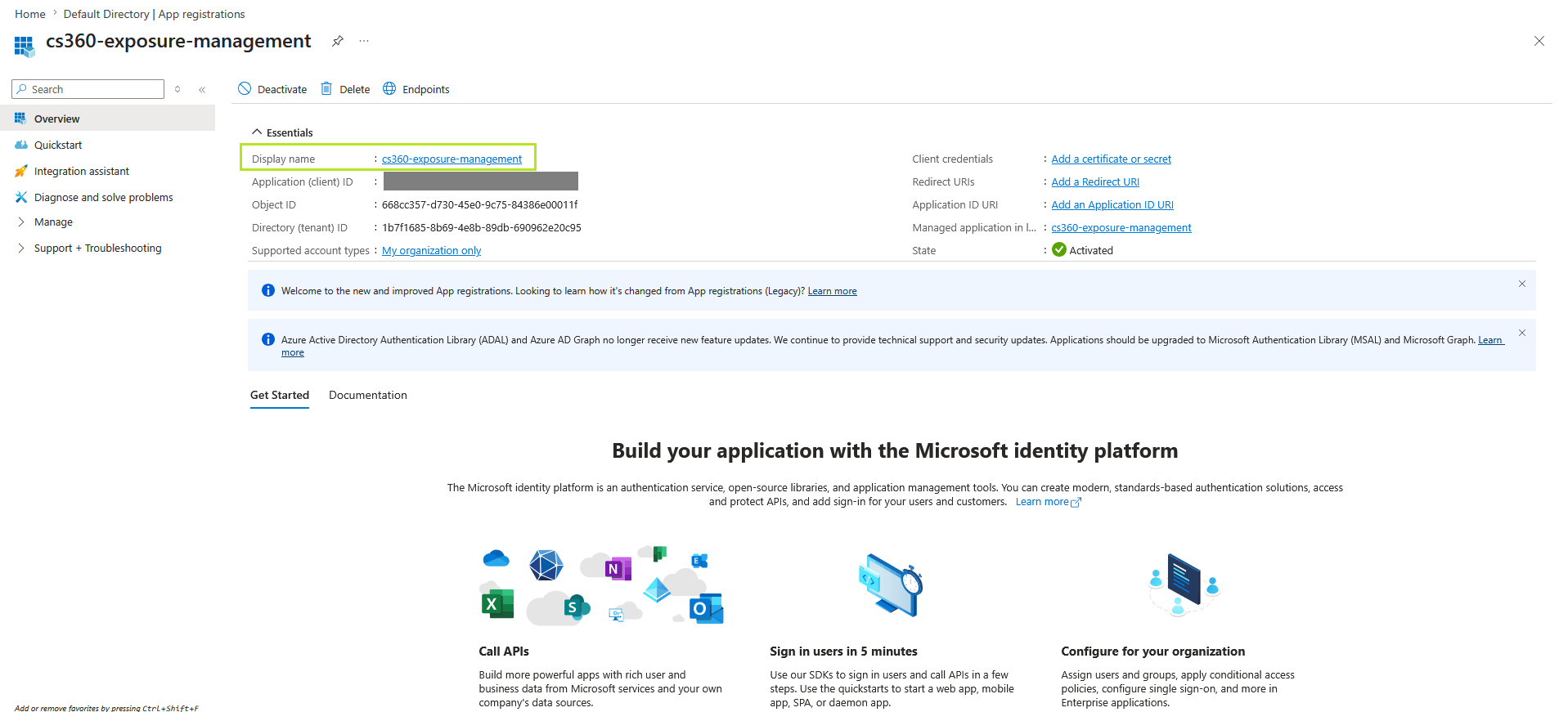
5) Take note of the Application (client) ID from the App registration page:
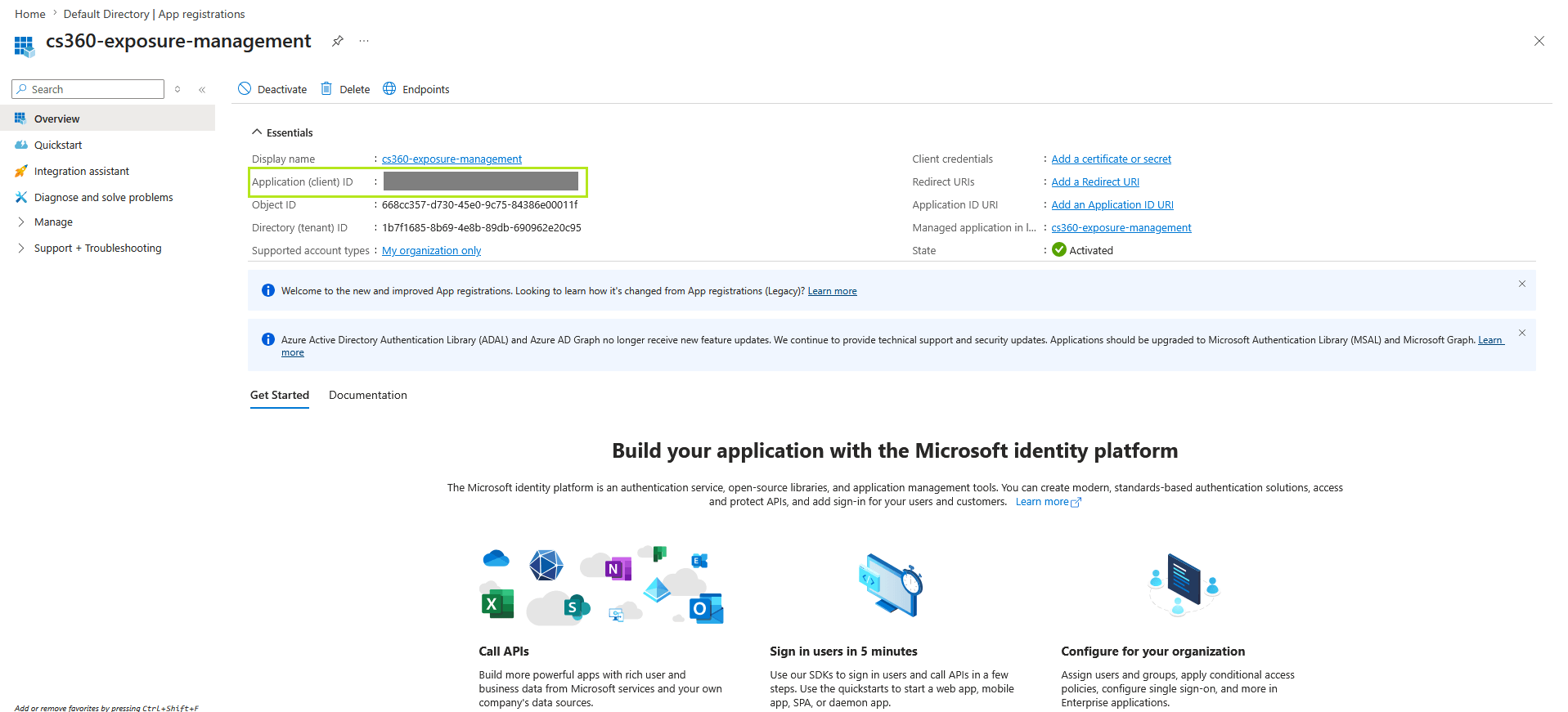
6) Click on the Display Name as shown below:
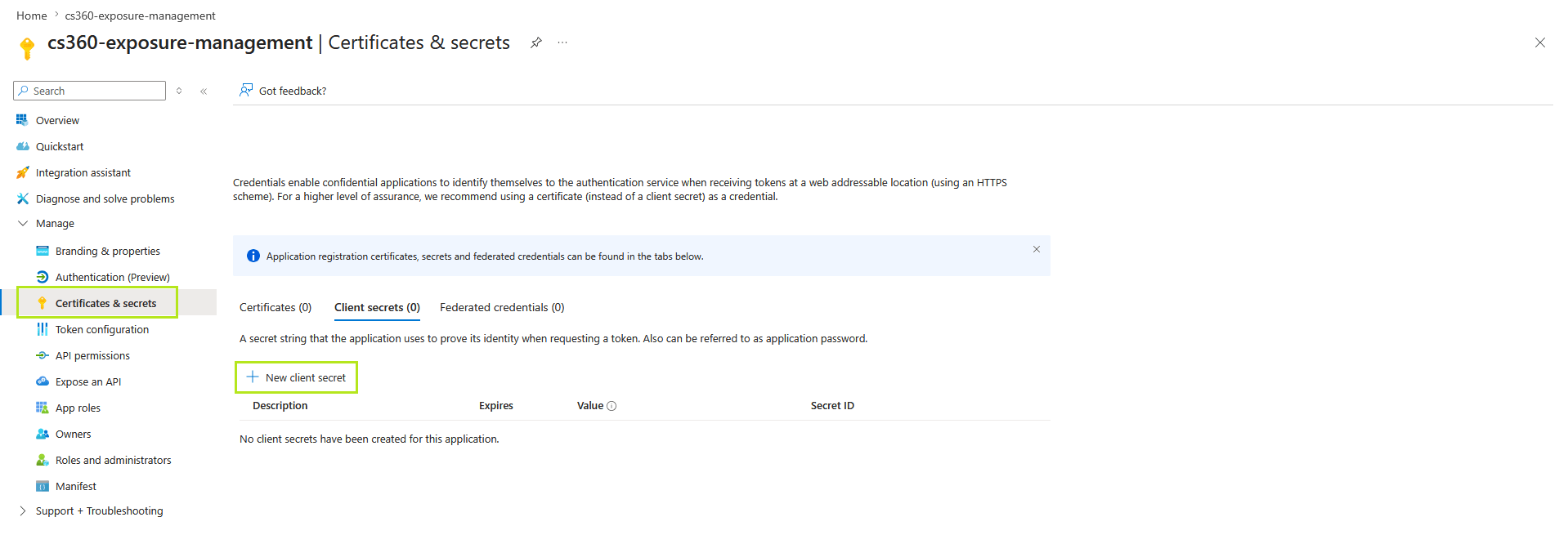
7) Go to Certificates & secrets > + New client secret
8) Complete the form by adding the Name (cs360-exposure-management), set the Expiry to 365 days (12 months) and click Add.
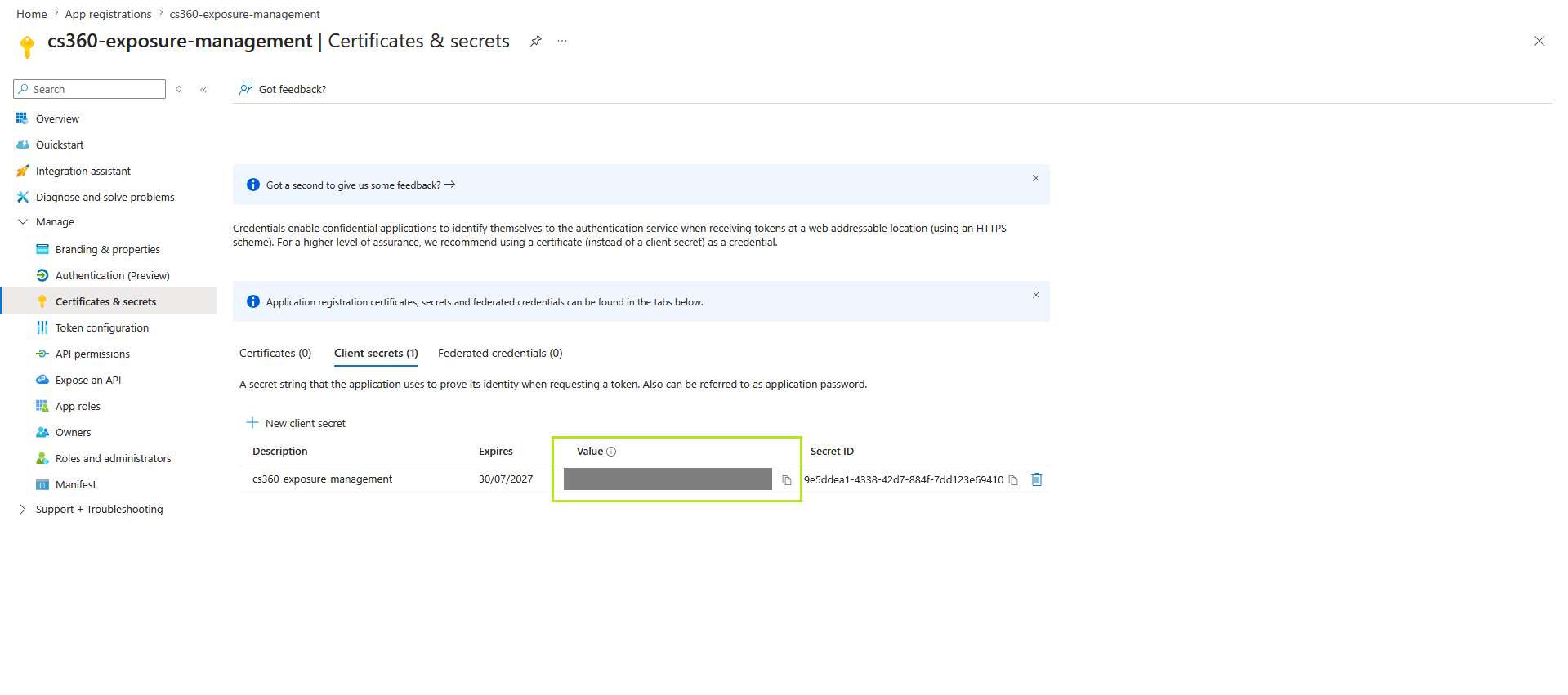
9) Now take note of the Client Secret Value
Part 2 – Service Principal Setup
Now it’s time to grant the required API permissions to the service principal.
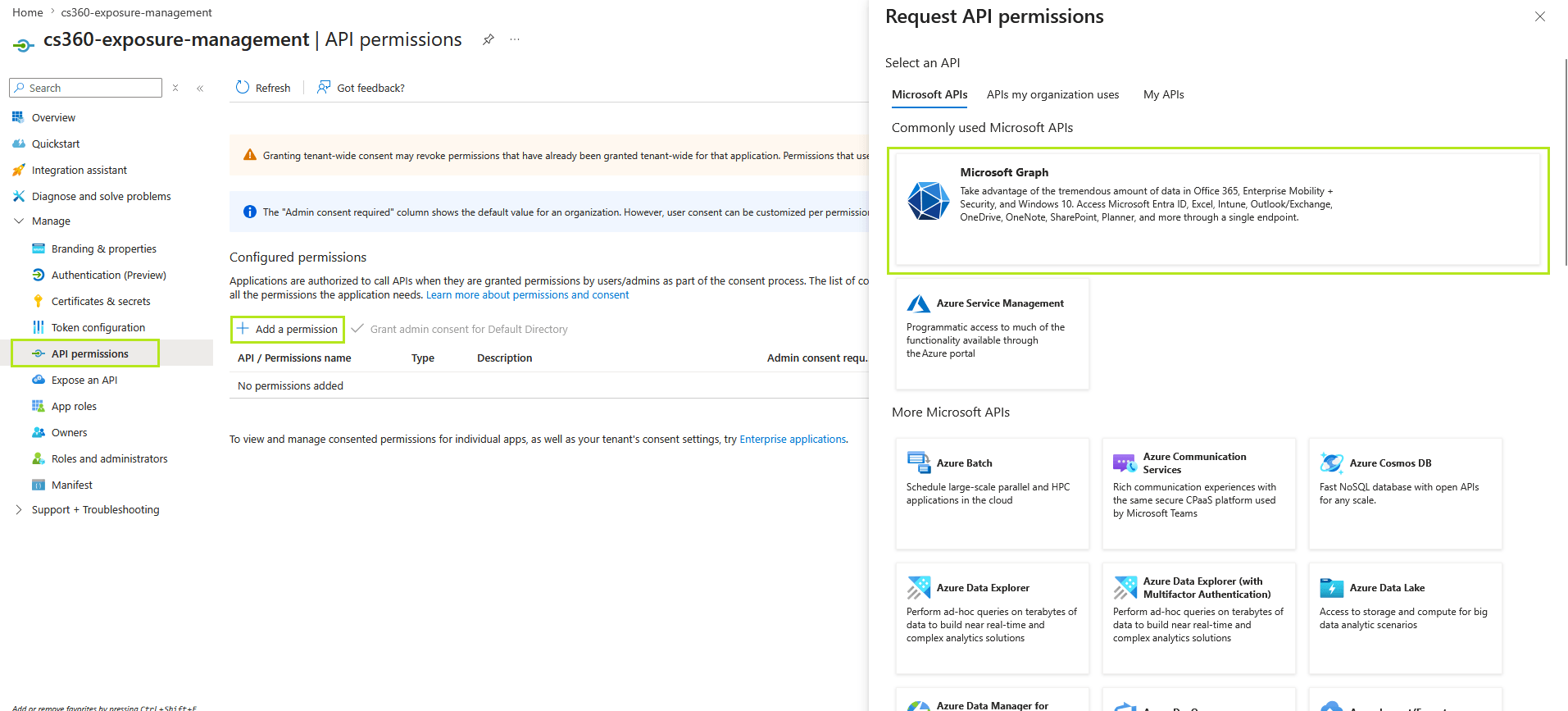
1) Navigate to API permissions then Add a permission then select Microsoft Graph:
2) Assign the following Microsoft Graph permissions:
API Permission Name |
Type |
Why is this needed? |
| User.Read | Delegated | Read Sign in and user profile |
| AuditLog.Read.All | Application | Read audit log data |
| Directory.Read.All | Application | Read directory data |
| Policy.Read.All | Application | Read your organization’s policies |
| Sites.Read.All | Application | Read items in all site collections |
| SharePointTenantSettings.Read.All | Application | Read SharePoint tenant settings |
| Domain.Read.All | Application | Read domains |
| Mailboxsettings.read | Application | Read all user mailbox settings |
| UserAuthenticationMethod.Read.All | Application | Read all users’ authentication methods |
Once you have added all the permissions you should see the following:
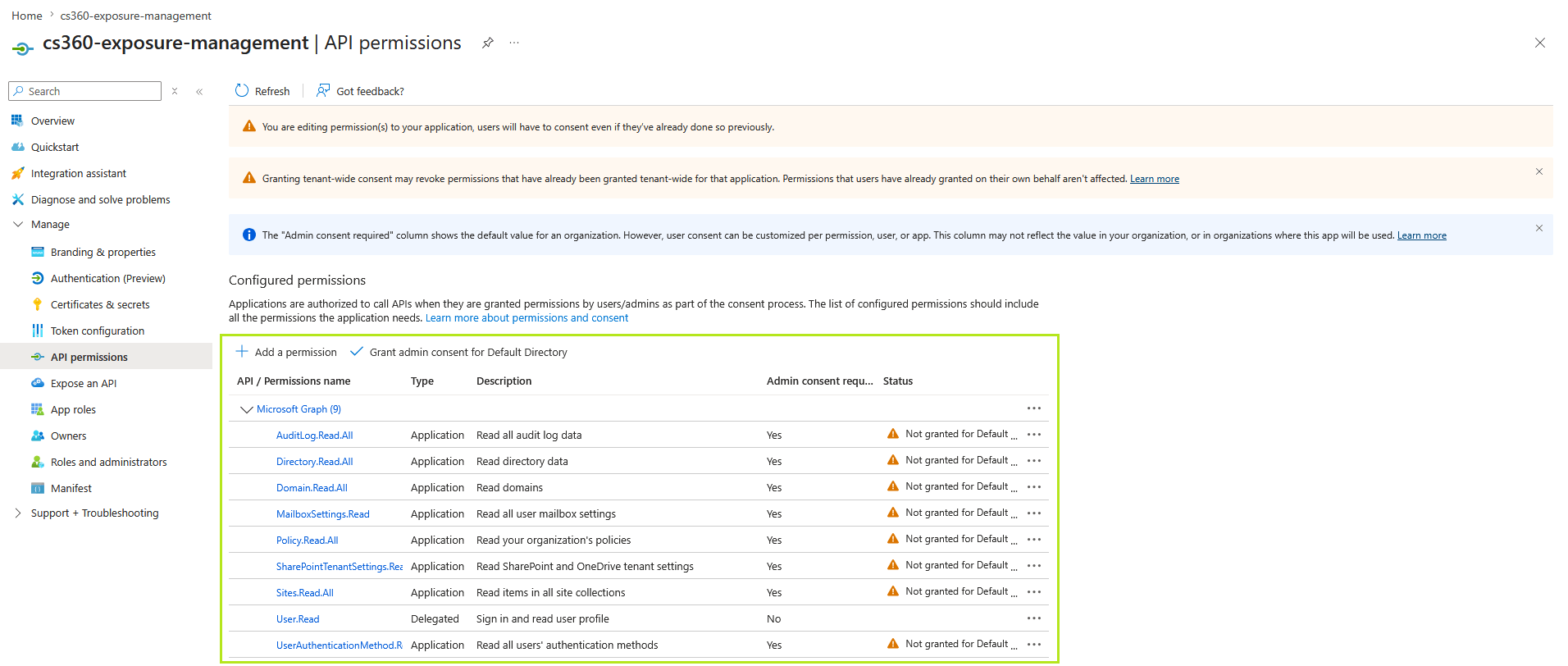
3) To complete the process click on Grant admin consent and then Yes to confirm:
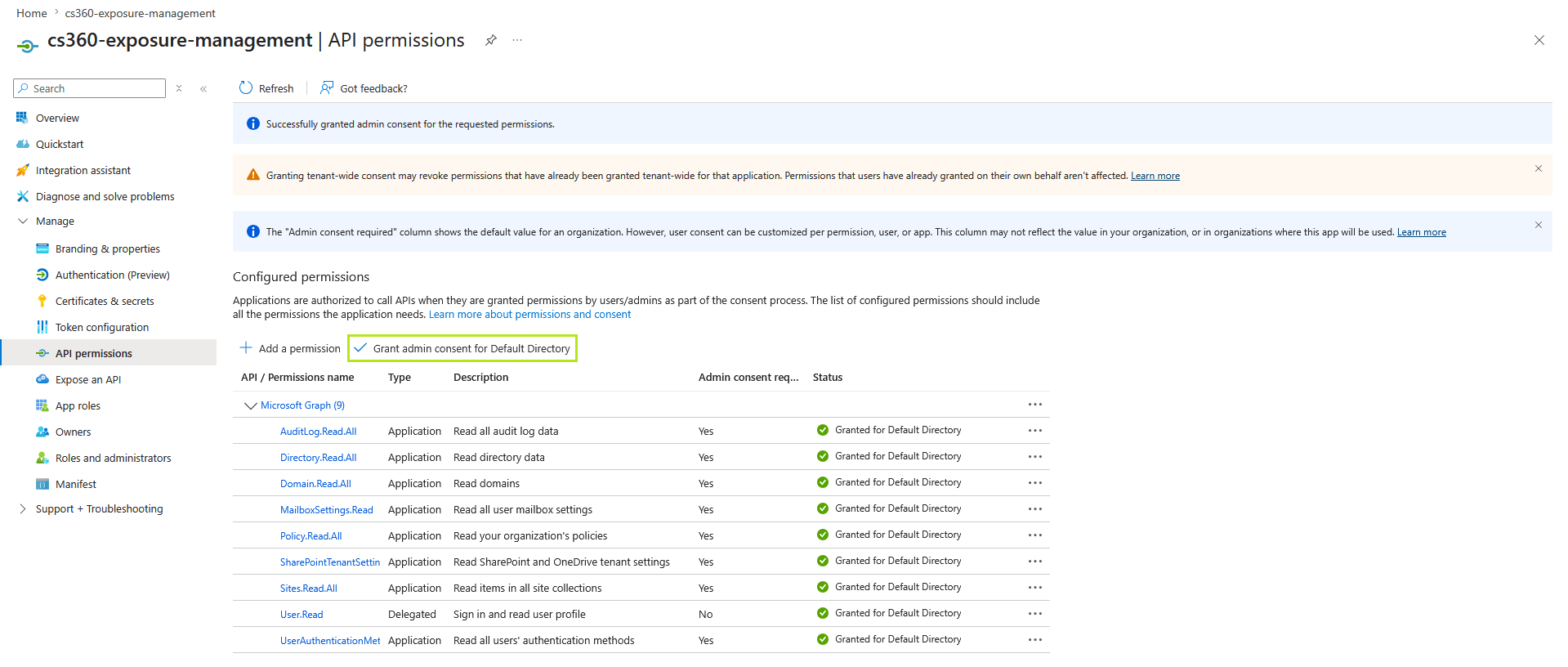
Part 3 – Azure Subscription IAM Role Setup
The last step is to create an IAM role for the earlier created cs360-exposure-management app user
1) Navigate to Home->Subscriptions and select your tenant name
2) Now click on Access Control (IAM)
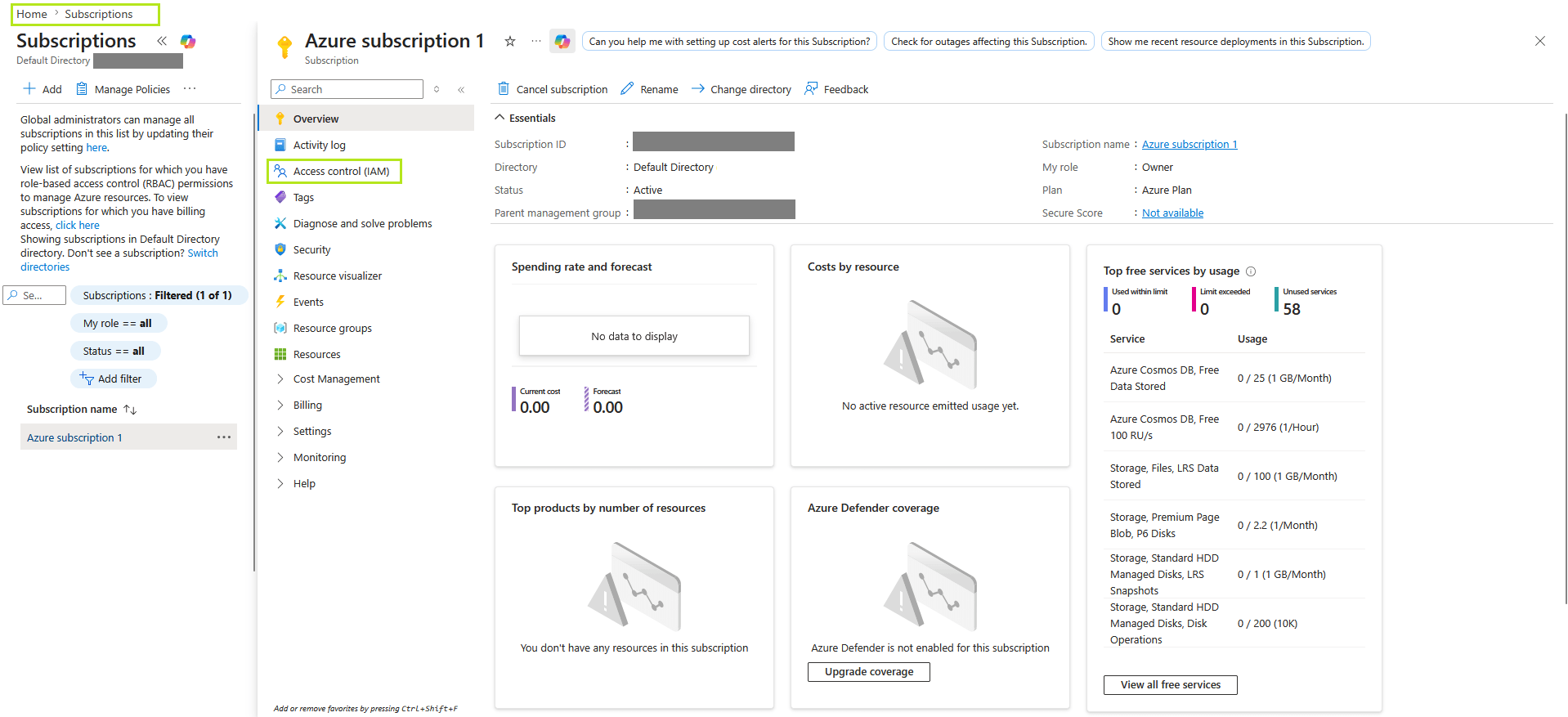
3) Select Add then Add role assignment
4) In the search bar, enter Reader, select it and click Next
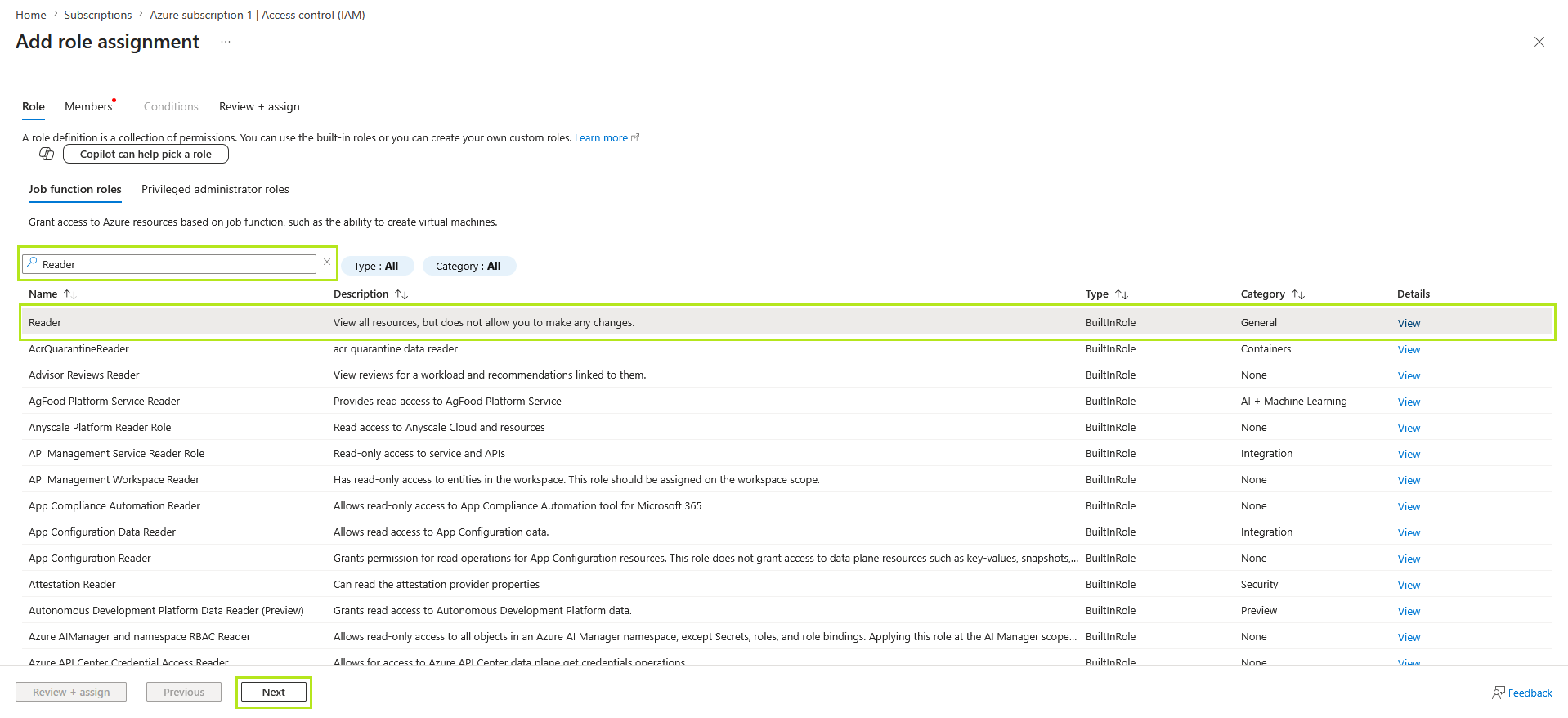
5) In the Members tab, click + Select members, then add the cs360-exposure-management app user to assign this role, click Select.
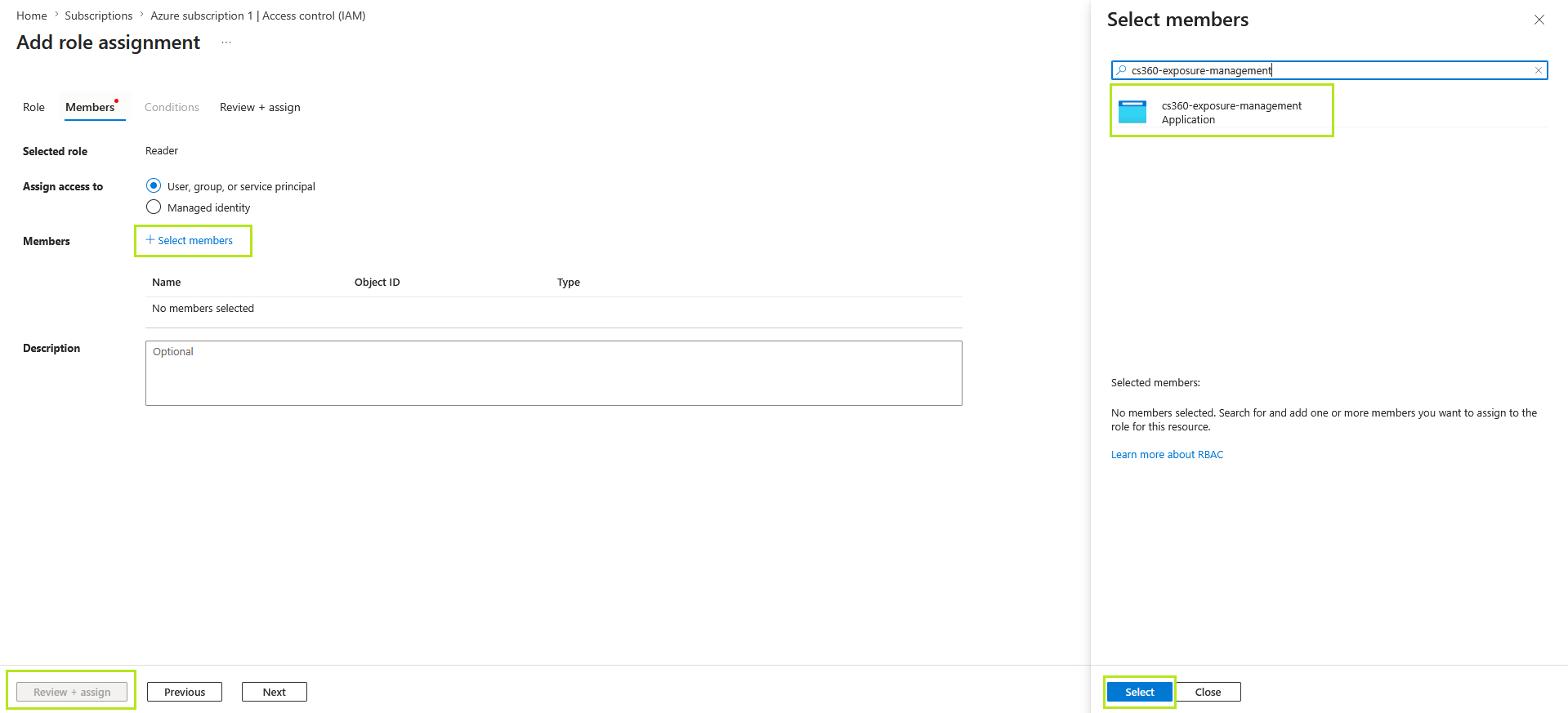
6) Click Review + assign to finalise and apply the role assignment.
That’s it!
You should now have the required authentication details to configure each scanner:
- Tenant ID
- Client ID
- Client Secret Value