In order to configure the AWS Scanner in CS360 for Cloud Security Scanning and User Threat Monitoring a Service User needs to be created.
Once you have completed this setup you will have the required authentication details to the scanner:
- Access Key
- Secret Access Key
1) Login to the AWS console with an IAM user with Administrator privileges
2) Navigate to IAM and click on Create User
3) Select a Username such as cs360-readonly-service-account
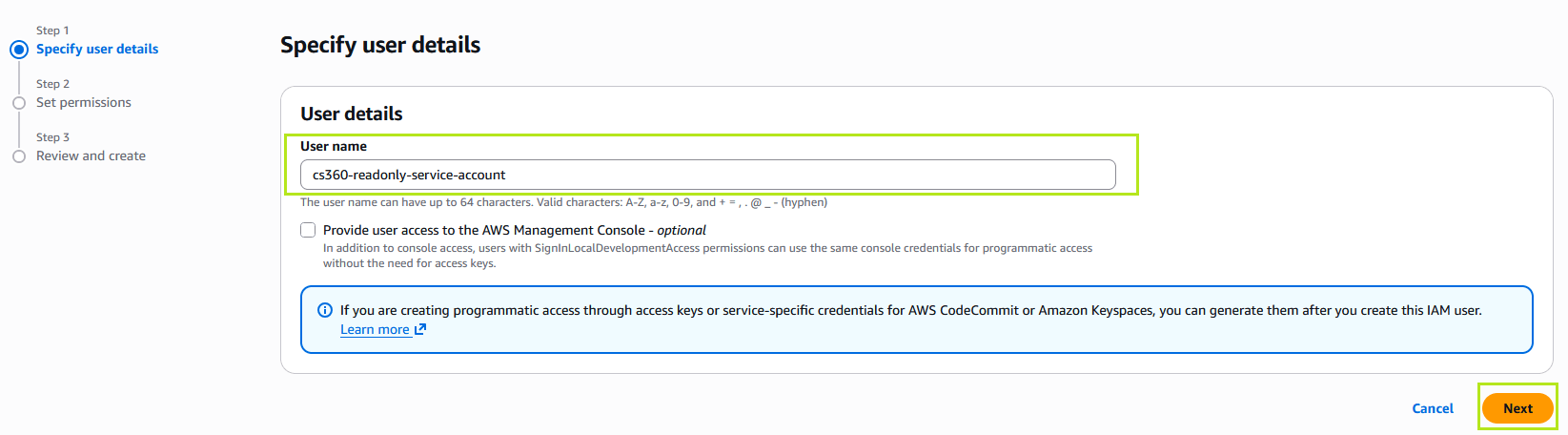
4)Create a User Group such as CS360.ai following AWS Best Practices, and add the SecurityAudit permission policy
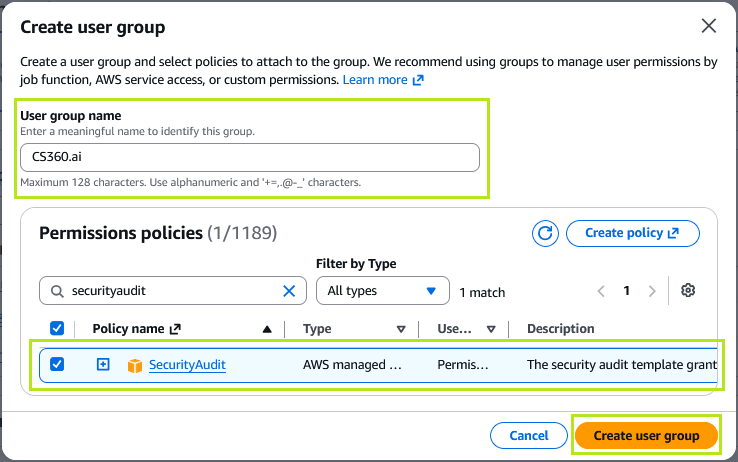
5) Click Create user group
6) Tick the newly created CS360.ai group and click Next
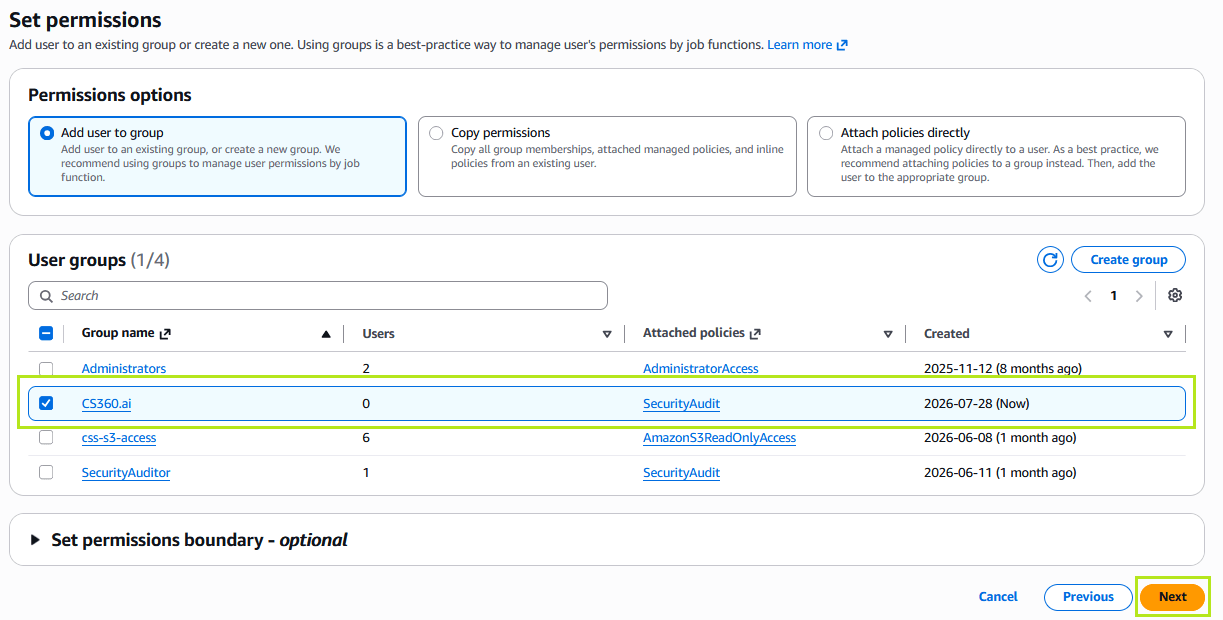
7) Click Create user
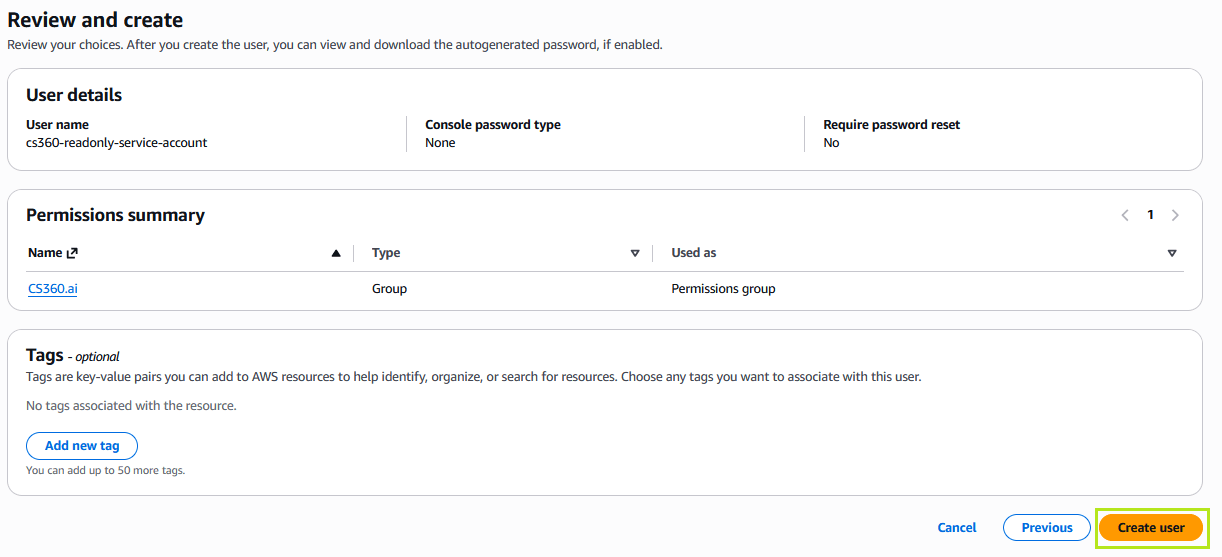
8) Now in IAM click on the newly created user cs360-readonly-service-account
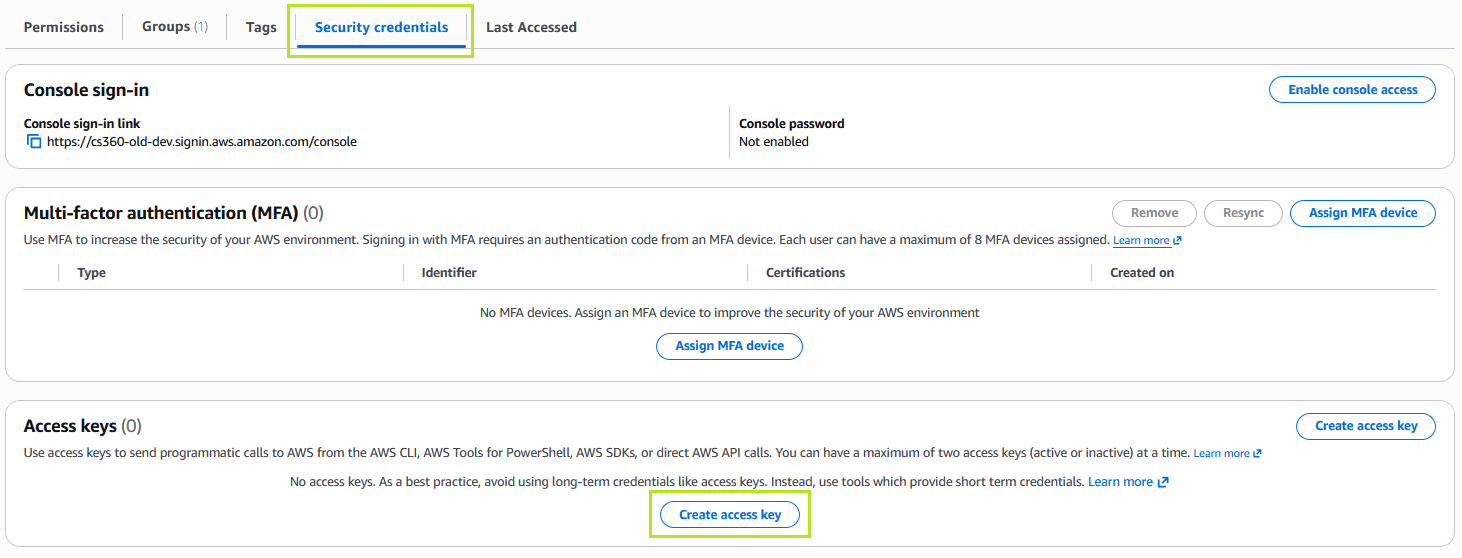
9) Click on the Security Credentials tab
10) Click on Create Access Key
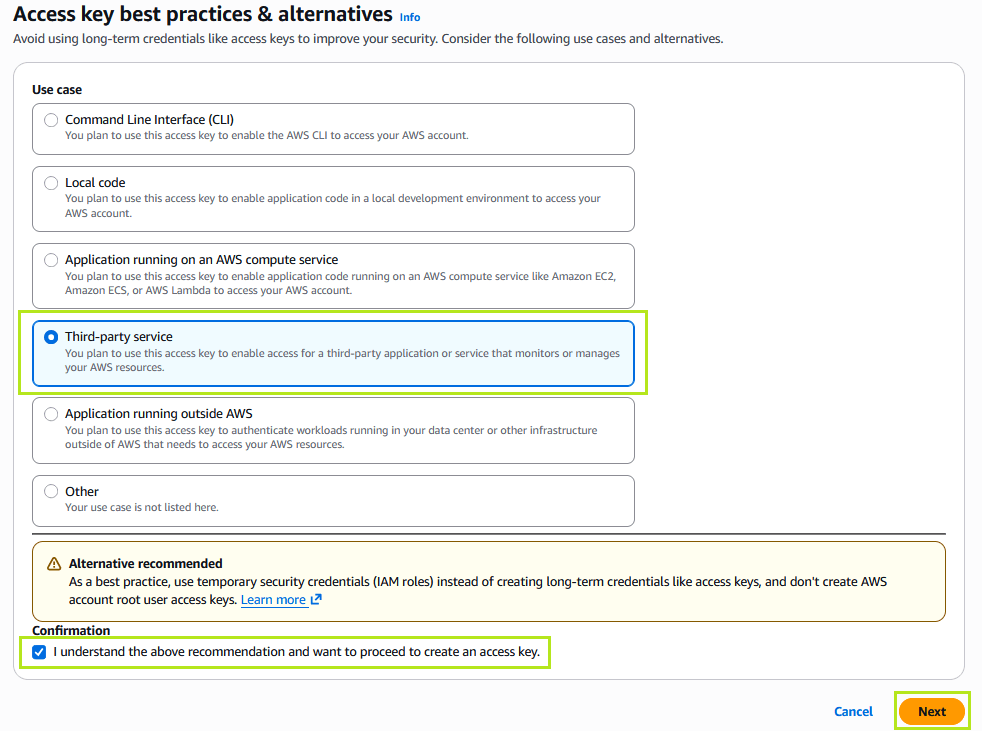
11) Click on Third-party service and tick the Confirmation Box
12) Click Next
13) Set a description tag value (Optional)
14) Click Create access key
15) Save your Access Key and Secret Access Key (You will need these for CS360.ai) and click on Done
That’s it!
You should now have the required authentication details to configure each scanner:
- Access Key
- Secret Access Key