When being assessed for Cyber Essentials Plus, a subset of mobile devices will be selected to ensure they are running supported versions & trusted certificates.
Please provide the applicable screenshots for the selected devices, as demonstrated below.
IOS Screenshots
To get the required screenshots on an iOS device, please use the following steps:
1. Open the Settings application.
2. Click General, then About.
3. Please screenshot this page.
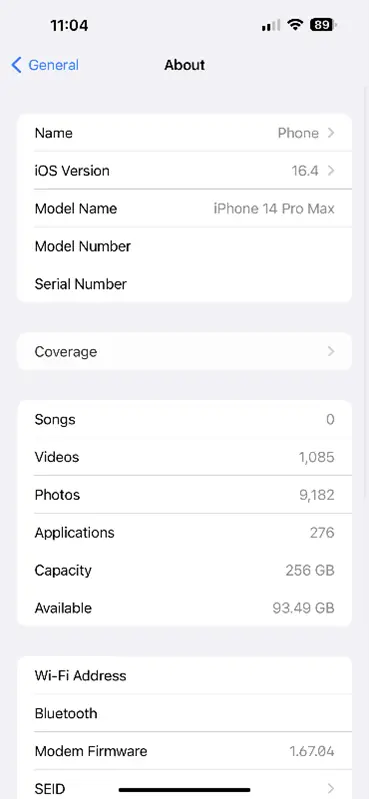
4. Scroll to the bottom of this page and click Certificate Trust Settings.
5. Please screenshot this page.
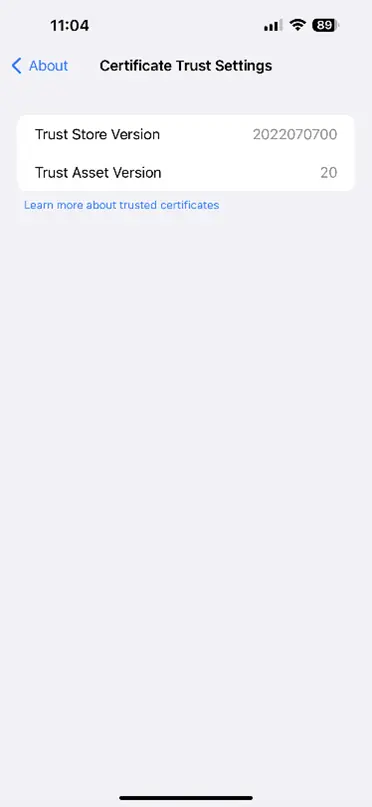
6. Finally, please send these screenshots to our team via email.
Android Screenshots
To get the required screenshots on an Android device, please use the following steps:
1. Open the Settings.
2. Click the upper right Magnifying Glass.
3. Type About Phone and click the result.
4. Please screenshot this page.
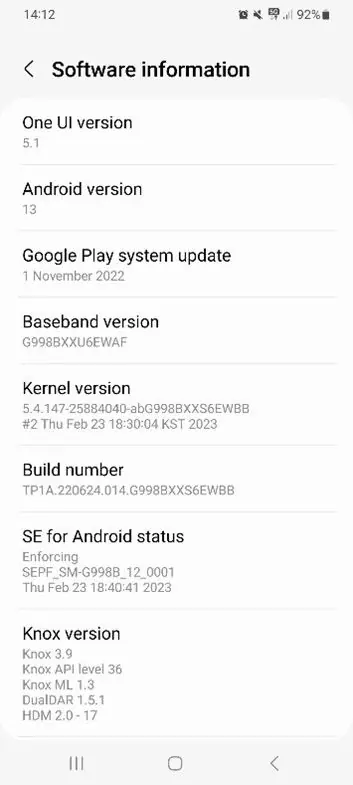
5. Click the back arrow and clear the search bar.
6. Type User Certificates and click the result.
7. Please screenshot this page.
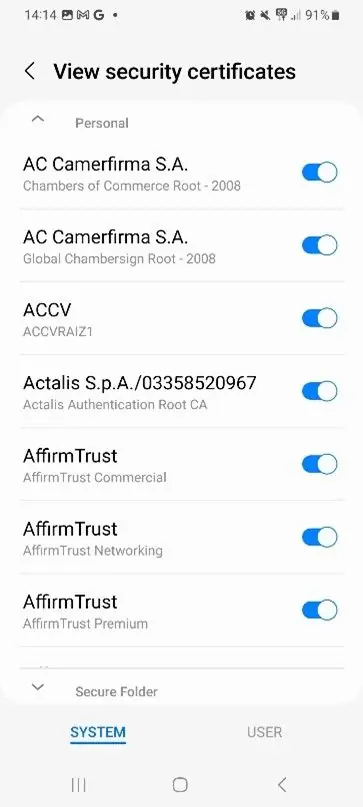
8. Click User and screenshot the page.
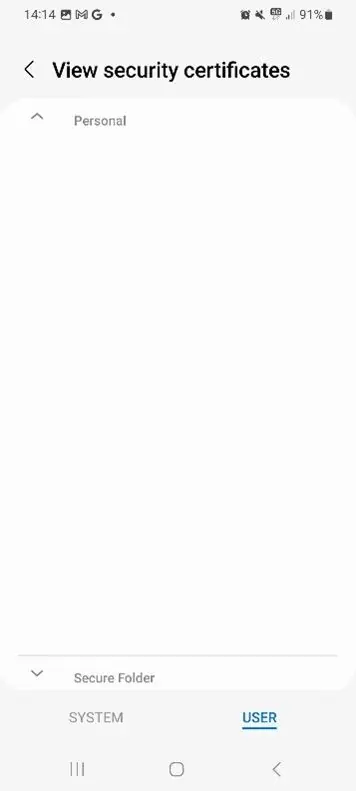
9. Finally, please send these screenshots to our team via email.
Related Pages