In order to configure the Cloudflare Scanner in CS360 for Cloud Security Scanning and User Threat Monitoring a read-only API Token needs to be created.
Once you have completed this setup you will have the required authentication details to configure the scanner:
- Account ID
- API Token
Step 1 – Find your Account ID
1) Login to https://dash.cloudflare.com 2) Select the Account you want to scan 3) In the left menu, click Compute, then click Workers & Pages
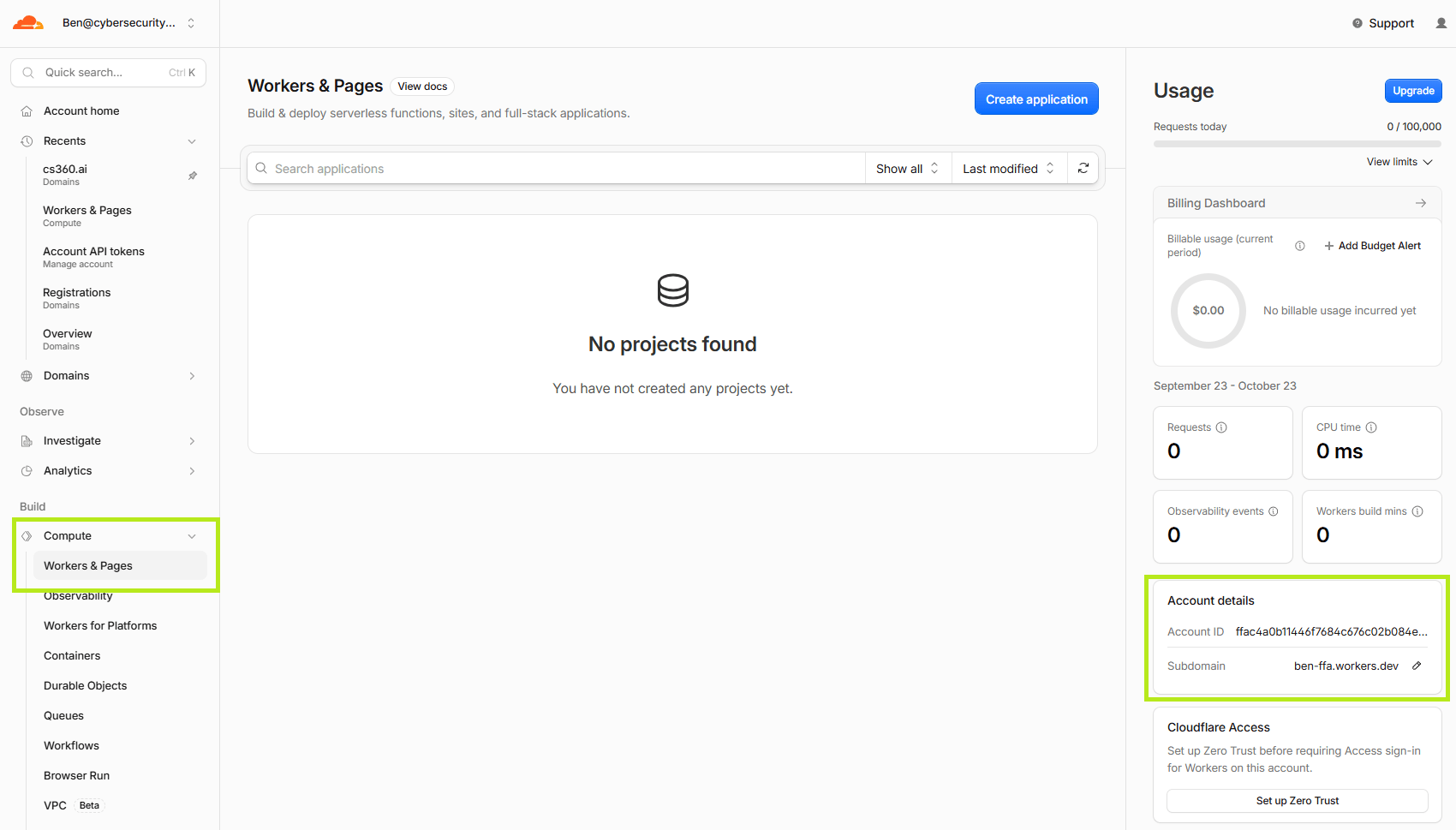
4) Under Account details, take note of the Account ID. It is 32 characters long, made up of numbers and the letters a to f Do not use the Zone ID. It looks similar, but scans will fail with it. You can also find the Account ID in your browser address bar. It is the long string straight after dash.cloudflare.com/
Step 2 – Create the API Token
1) Click the profile icon in the top right corner and click My Profile 2) In the left menu, click API Tokens
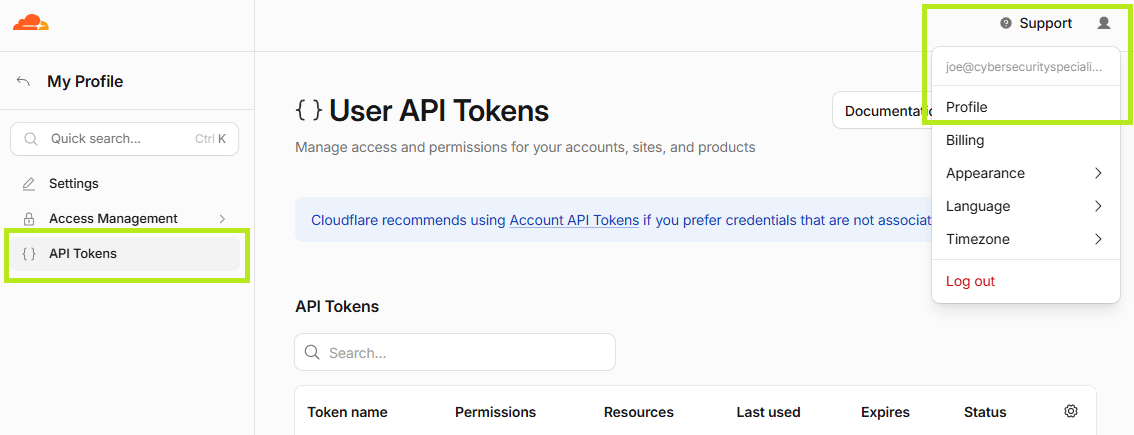
3) Click Create Token
4) Next to Create Custom Token, click Get started
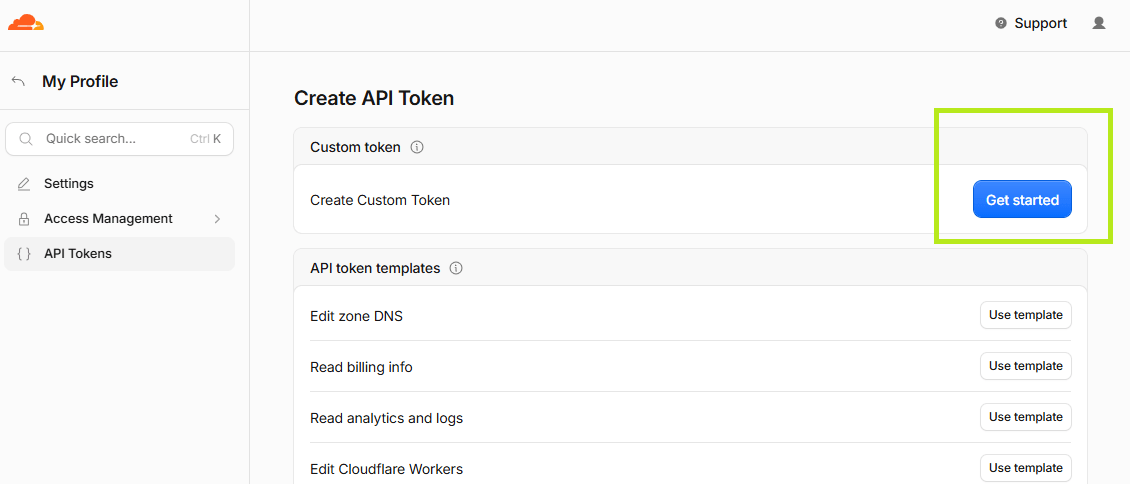
5) Set the Token name to cs360-scanner
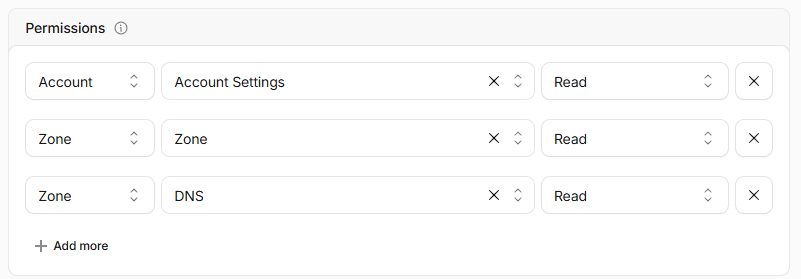
6) Under Permissions, add the following, each set to Read:
- Account | Account Settings – account members and audit logs
- Zone | Zone – the domains in the account
- Zone | Zone Settings – SSL/TLS, HSTS and security settings
- Zone | DNS – DNS records and DNSSEC
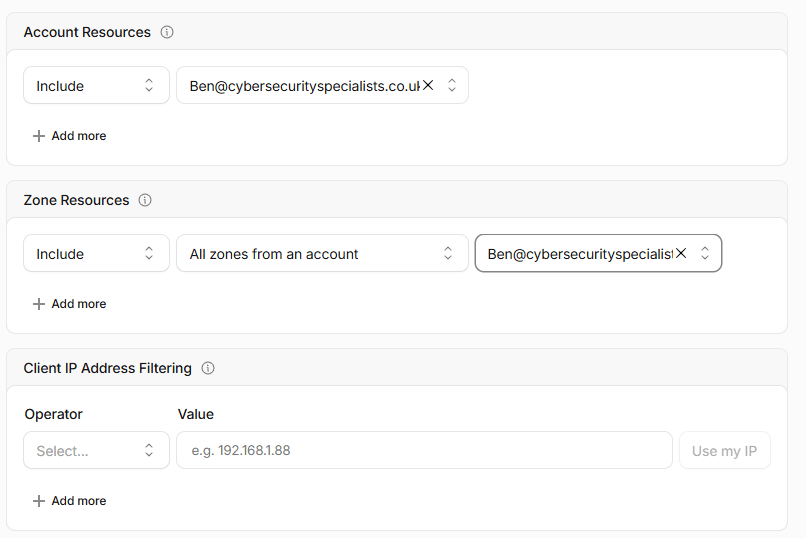
7) Under Account Resources, select Include and choose your account
8) Under Zone Resources, select Include > All zones from an account and choose the same account
9) Leave Client IP Address Filtering blank
10) Set a TTL if your organisation requires tokens to expire (Optional)
11) Click Continue to summary, check the permissions, then click Create Token
12) Copy the token and save it securely (You will need this for CS360.ai). Cloudflare will only show it once
Do not use your Global API Key. It gives full control of your account and is not supported by CS360.ai. Do not grant any Edit permissions: CS360.ai only reads your settings and never makes changes.
CS360.ai scans run from changing IP addresses, so IP address filtering will block them.
If you set a TTL, scans stop when the token expires. Set a reminder to create a replacement before the expiry date.
That’s it!
You should now have the required authentication details to configure the scanner:
- Account ID
- API Token