In order to receive CS360 alerts and notifications in Slack, an Incoming Webhook needs to be created in your Slack workspace.
Once you have completed this setup you will have the required details for the integration:
- Webhook URL
- Target Channel
Prerequisites
- A Slack workspace where you are permitted to install apps (workspace Owner/Admin, or an approved app request)
- The channel CS360 notifications should be posted into (create it first if required, e.g. #cs360-alerts)
Creating the Incoming Webhook
1) Browse to https://api.slack.com/apps and sign in to your Slack workspace
2) Click Create New App, then under Or start your own way select Blank app and click Continue
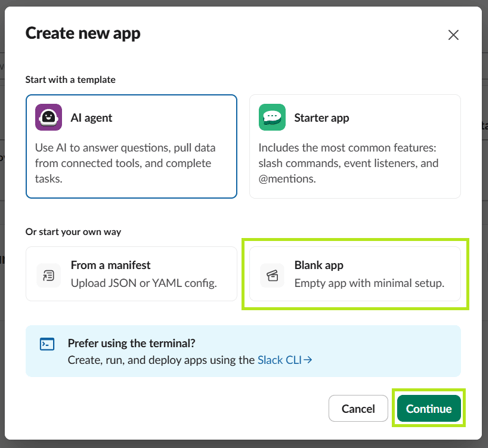
Ignore the “AI agent” and “Starter app” templates – these add features that are NOT required for an incoming webhook.
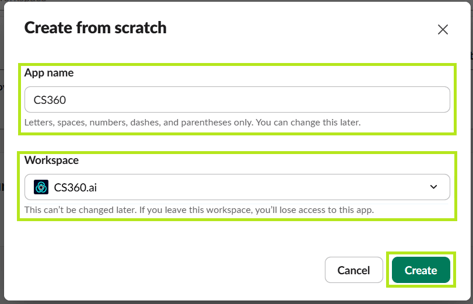
3) Enter an App Name such as CS360, select the Workspace to install into, and click Create App
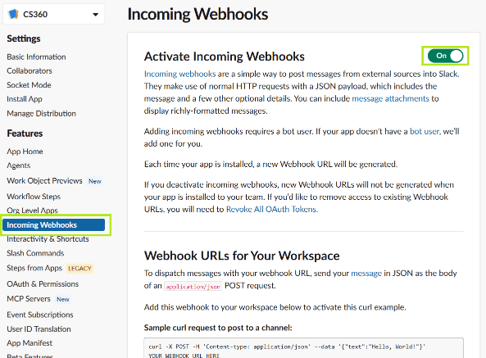
4) In the left-hand menu under Features, click Incoming Webhooks
5) Set the Activate Incoming Webhooks toggle to On
6) Scroll to the bottom of the page and click Add New Webhook to Workspace
7) Select the Channel that CS360 should post to (e.g. #cs360-alerts) and click Allow
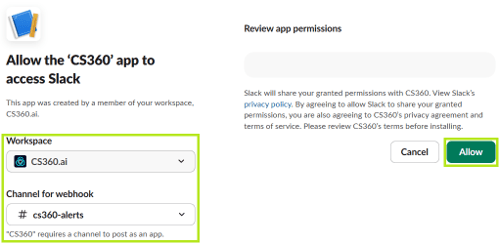
If your workspace requires admin approval for new apps, the request is sent to a workspace Owner at this point and the webhook is only issued once approved.
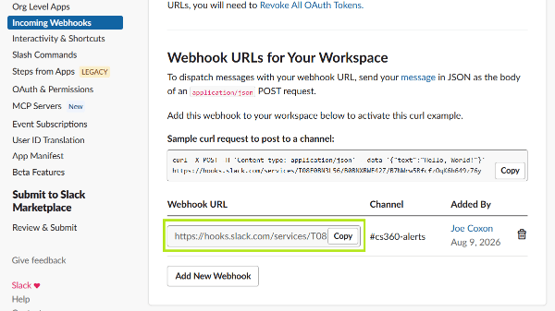
8) You will be returned to the Incoming Webhooks page, where the new Webhook URL is listed
9) Click Copy and save the Webhook URL (you will need this for CS360.ai)
Optional – branding the app
10) Under Settings > Basic Information, expand Display Information
11) Set the App icon, Background colour and Short description, then click Save Changes
Testing the webhook
From a terminal, replace the URL below with your own and run:
curl -X POST -H ‘Content-type: application/json’ \
–data ‘{“text”:”CS360.ai test notification”}’ \
https://hooks.slack.com/services/T00000000/B00000000/XXXXXXXXXXXXXXXXXXXXXXXX
A response of ok and a message appearing in the channel confirms the webhook is working.
That’s it!
You should now have the required authentication details to configure the Slack Integration:
- Webhook URL
- Target Channel