Published 22/06/2022 – est. 4 minutes to read.
The number of cyberattacks doubled in 2021.
There are frequent news stories about cyberattacks on businesses. At work, IT departments manage our devices, keep them up to date, install anti-malware software, ensure we use strong passwords, and provide training to help us stay alert to potential cyberattacks.
Cyber criminals do not only target businesses. They will scan for weaknesses anywhere and will seize an opportunity wherever they find it.
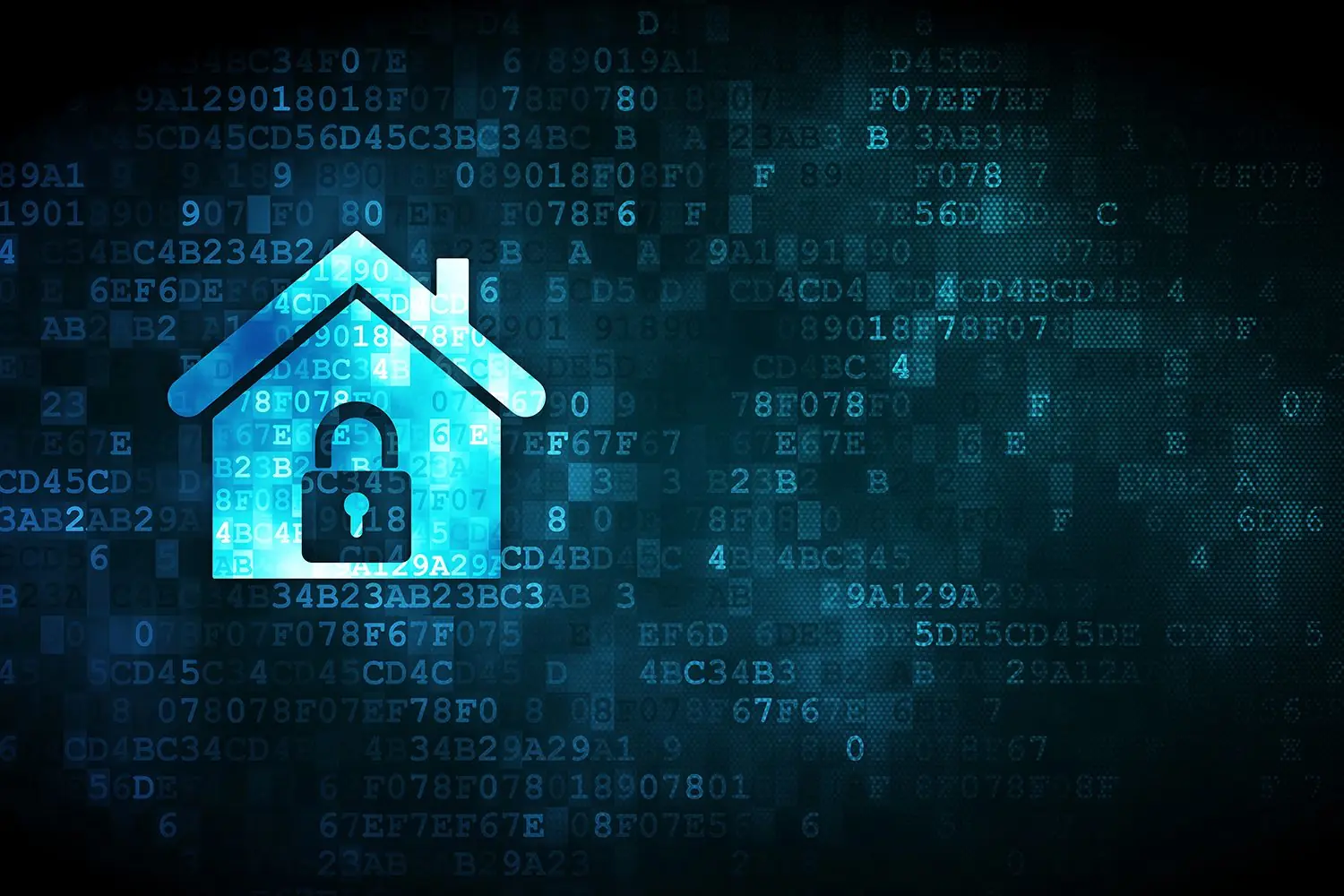
We all now use computers, smartphones, and the internet more than ever. They have become a fundamental part of our everyday life, from online banking and shopping to email, social media, and online gaming. It’s more important than ever to do everything we can to prevent cybercriminals from accessing our accounts, data, and devices, both at work and at home.
The 10 actions you can do yourself
There are 10 actions listed below that can help protect us from cyberattacks at home. Consider these as a starting point for an evolving journey to improve your domestic Cyber Security and better protect yourself from Cyber criminals.
- Always change the default password on a new router when you receive it from your Internet Service Provider or buy one. Default router passwords are known to potential hackers and are often freely available online.
- Also change your Wi-Fi SSID (network name) and password. Internet Service Providers often use all or part of your address as the SSID and print the Wi-Fi password on the back of the router. This information is often freely visible to a casual observer if your router is positioned on a windowsill! Change your wireless network name to something that does not identify you or your property, and set a new complex Wi-Fi password.
- Keep your WiFi password as private as possible. You may want to share it with close friends and family, but don’t freely give it to visitors, such as decorators or plumbers. It is also not a good idea to advertise it on a sign or blackboard in your hallway.
- Check the settings on a new router when you first receive it. Ensure that the built-in firewall is enabled, and check that the router firmware is up to date. Many routers have an auto-update feature which downloads and installs security patches. If your router has this feature, check that it is switched on.
- Ensure you install security updates on laptops, desktops, and mobile devices. Also, check regularly that the auto-update feature on your devices is working. Updates are released regularly to patch security vulnerabilities in devices and to add new features. Shut down laptops and desktop PCs at night to ensure that any operating system and software security updates are fully installed. It will also save electricity!
- Consider turning off your router while you are away on holiday if it is not required for alarm functions or CCTV monitoring. If you are away from home, hackers will have more time to try accessing your network without being detected.
- Secure your Smart Devices! Internet of Things (IoT) Smart devices (lights, speakers, televisions, fridges, etc) are becoming increasingly common in homes. Efforts are being made to ensure that these devices are as secure as possible; however, always ensure that default passwords are changed and security updates are applied in a timely manner. Try to research products before buying to ensure they are supported by the manufacturer for their expected lifespan.
- Never use the same password on more than one website, online account, or service. Always use complex passwords, consider using three random unrelated words, or special characters and numbers. Password manager software, such as LastPass, 1Password, or KeePass, lets you store all your passwords. You then set a master password to access the software, which is the only one you need to remember.
- Always back up your data to a secure cloud service to protect it against loss from theft or device failure. Microsoft OneDrive is included with Windows 10 and 11 and is also available on mobile devices, where it can be used to back up your photos. Apple provides its iCloud service across all its devices, offering similar backup options. Google also provides cloud backup services for Android phone users. All services offer a certain amount of storage free of charge, with upgrade options for more available at a relatively low cost. Many other third-party services are available; however, always do your research, check reviews, see where your data is stored, and read the fine print!
- Always enable MFA! Most websites with an online account feature now offer Multi-Factor Authentication (MFA) to protect access to your account and personal information. Always use this feature if it is offered to you. MFA works by using a combination of authenticators to verify that you are accessing your account. The three authentication factors are something you know (your password), something you own (e.g., a mobile phone) and something you are (e.g., a biometric fingerprint). A common method is that when you enter your password, a message is sent to your phone containing a passcode to enter on the website. Your identity is verified as you know your password and have your phone.
For more information about Cyber Security at home and in business, there is a wealth of useful resources on the National Cyber Security Centre (NCSC) website.
You could create your own personal Cyber Action Plan by completing their short questionnaire and getting a free personalised list of actions.
Keep up to date with our other blogs, or review our services.
Related Pages